

Open the command palette
You can open the command palette from the dashboard header.
You can also click Search or jump to… in the top navigation. On entity pages, the search icon opens the same command palette with entity-specific options.
Search and navigate
- Open the command palette.
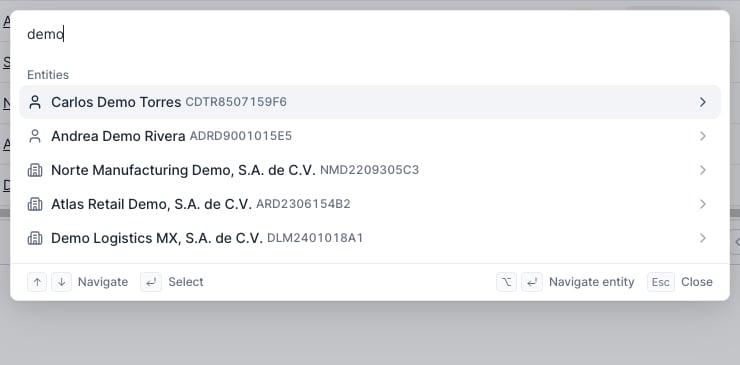
- Type a page name, entity name, RFC, datasource, report section, or data section.
- Use the arrow keys to move through results.
- Press
Enterto open the selected result.
tax returns can find the matching data section when that section is available for the current entity.
Global pages
When you are not inside an entity, the command palette can open common dashboard pages:- Home
- Entities
- Extractions
- Exports
- Workflows
- Settings
- Billing
- Extraction schedulers
- Users
- Webhooks
- SAT Credentials
- Buró de Crédito Authorizations
Entity results
Search by entity name or RFC to open an entity directly. Selecting an entity opens its Reports section. To choose a specific destination for an entity:- Search for the entity.
- Highlight the entity result.
- Press
Option+Enteron Mac orAlt+Enteron Windows or Linux. - Select the entity destination.
Current entity shortcuts
When you are viewing an entity, the command palette includes shortcuts for that entity:- Reports
- Extractions
- Data
- Credentials
Current report shortcuts
When you are viewing an entity report, the command palette can jump to available report sections. The available results depend on the report sections enabled for the entity and the data your organization has retrieved. Use this when you need to move between summary, financial, risk, bureau, shareholder, or other report sections without scrolling through the report navigation.Go back or close
UseEsc to close the command palette from the main result list. If you are inside a submenu, Esc goes back to the main result list. You can also press Backspace or Delete from an empty submenu search field to go back.
No matching results
If the command palette shows no matching pages or entities:- Check the spelling of the entity name or RFC.
- Try a broader term, such as
entities,invoices,tax returns, orcredentials. - Confirm that the entity exists in your organization.
- Confirm that the data or report section is available for the entity.